
PWA App
You can keep the Visit Nieporęt portal on your phone just like a regular app – with its own icon on the home screen, opening with a single tap and without the browser address bar. There is nothing to download from Google Play or the App Store: installation takes a few seconds and is completely free.
What is a PWA?
A PWA (Progressive Web App) is a website that you can install on your device and use like an app. It runs on your browser’s engine, but once installed it opens in its own full-screen window, has its own icon and remembers the pages you have visited – so it loads faster, even with a weak signal by the lake or in the forest.
- Always at handAn icon on your home screen – no typing addresses or searching through bookmarks.
- Light and freeTakes up a fraction of the space of a regular app and needs no account or app store.
- Always up to dateNew attractions, routes and events appear automatically – nothing to update.
- Works with a weak signalRecently visited pages stay available from your phone’s memory, even without internet.
Installing on Android (Chrome)
Open the portal in Google Chrome on your phone and follow three simple steps:
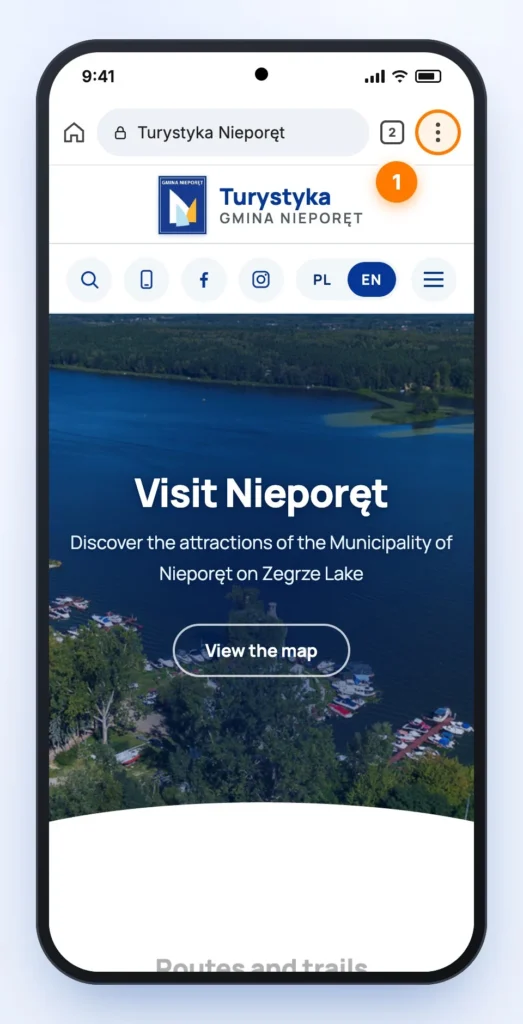
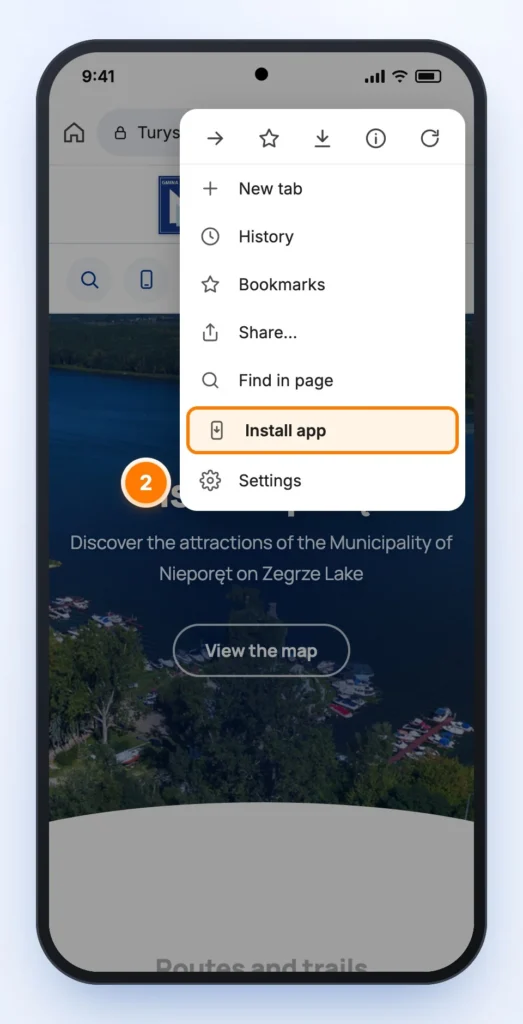
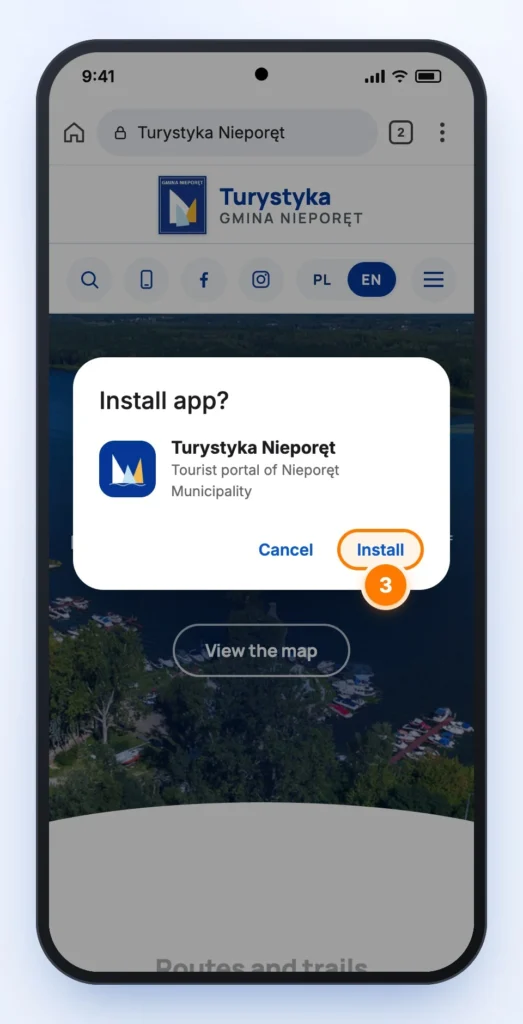
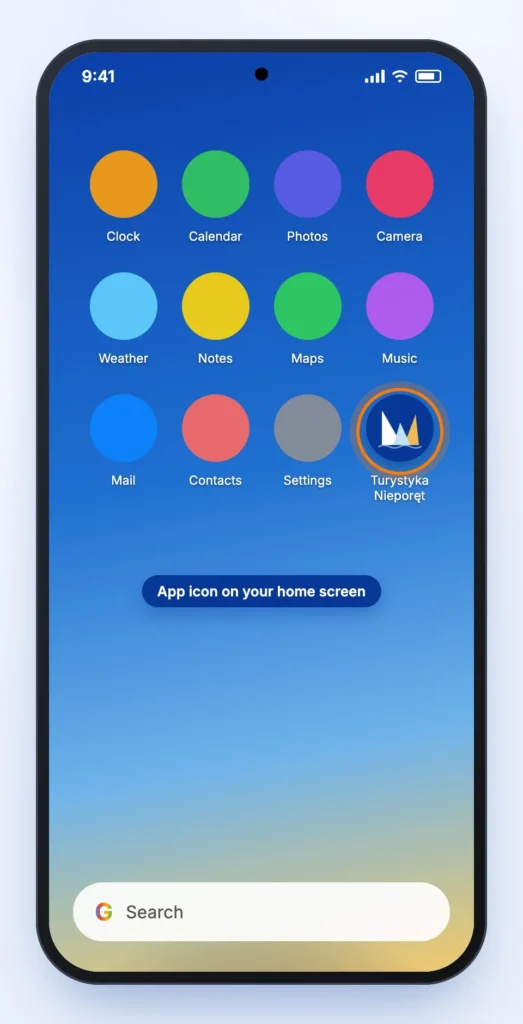
All done!
The Turystyka Nieporęt icon will appear on your home screen and in the app drawer. From now on the portal opens with a single tap – full screen, without the address bar.
Chrome sometimes offers installation on its own – an Install app prompt appears at the bottom of the screen. Just tap it. Installation also works in Samsung Internet and Microsoft Edge (from the browser menu).
Installing on iPhone and iPad (Safari)
On Apple devices, open the portal in Safari and add it to your Home Screen:
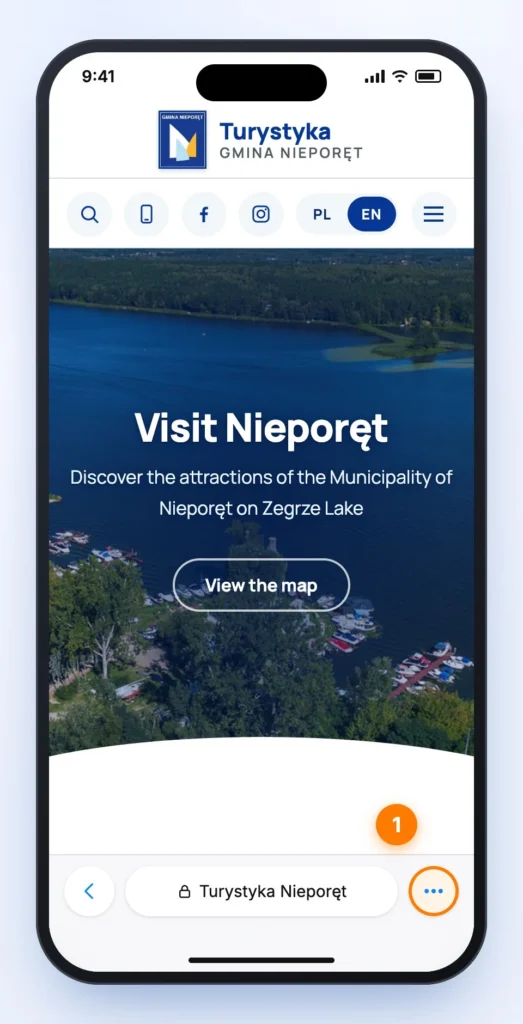
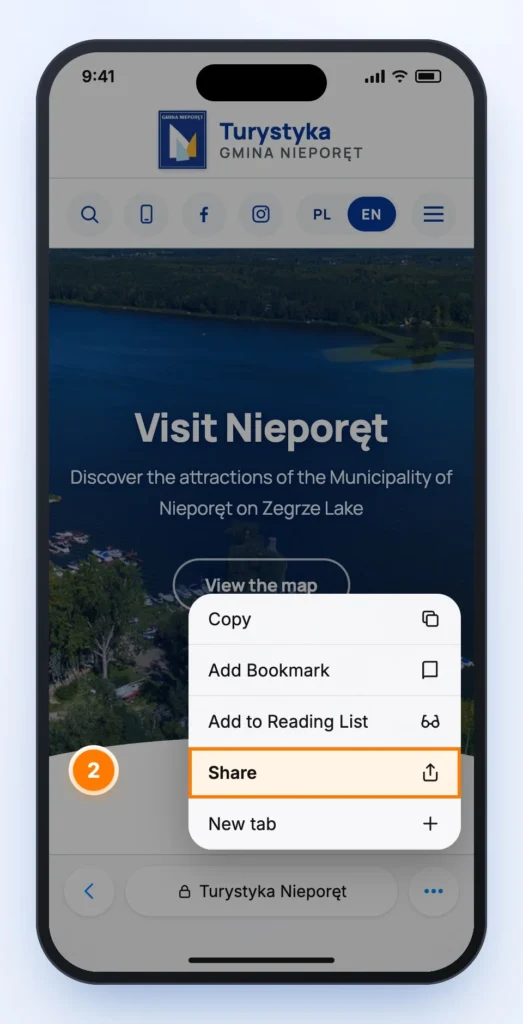
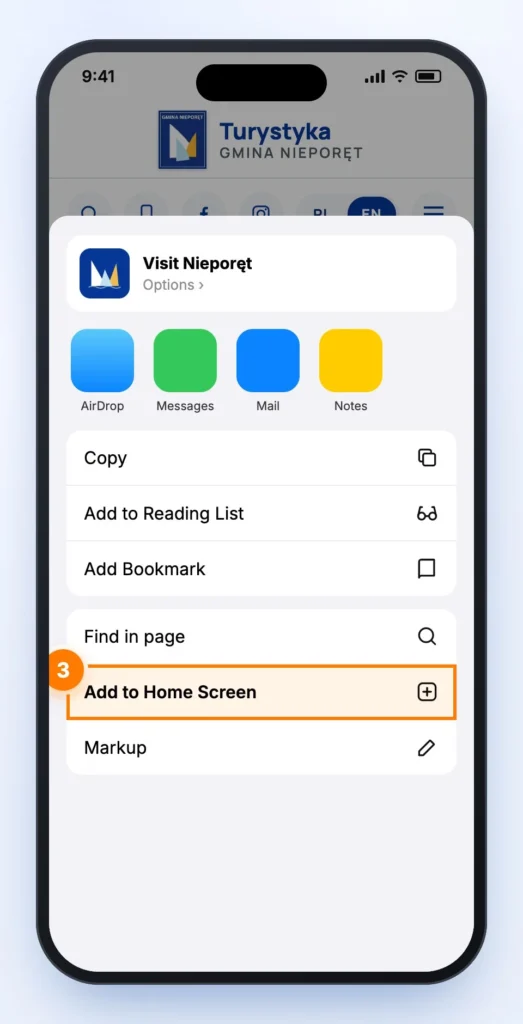
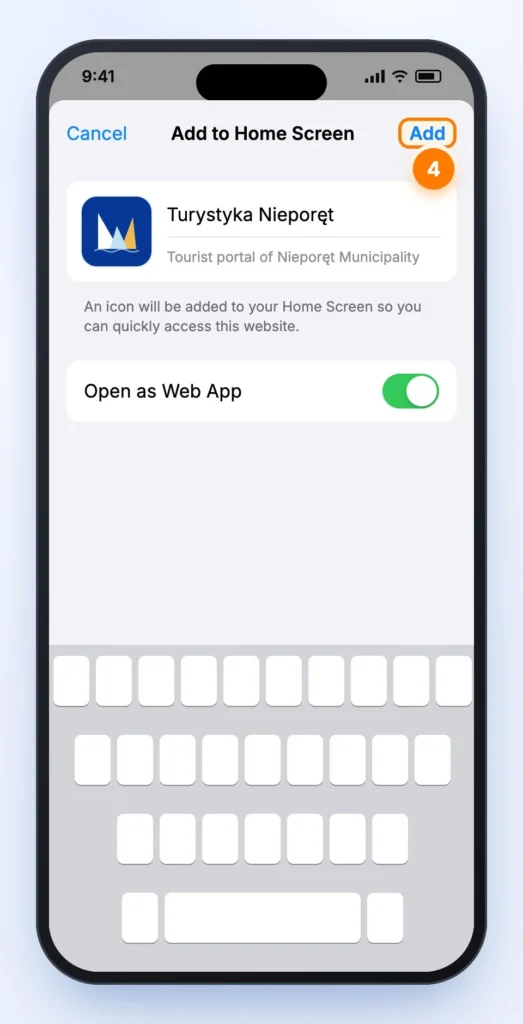
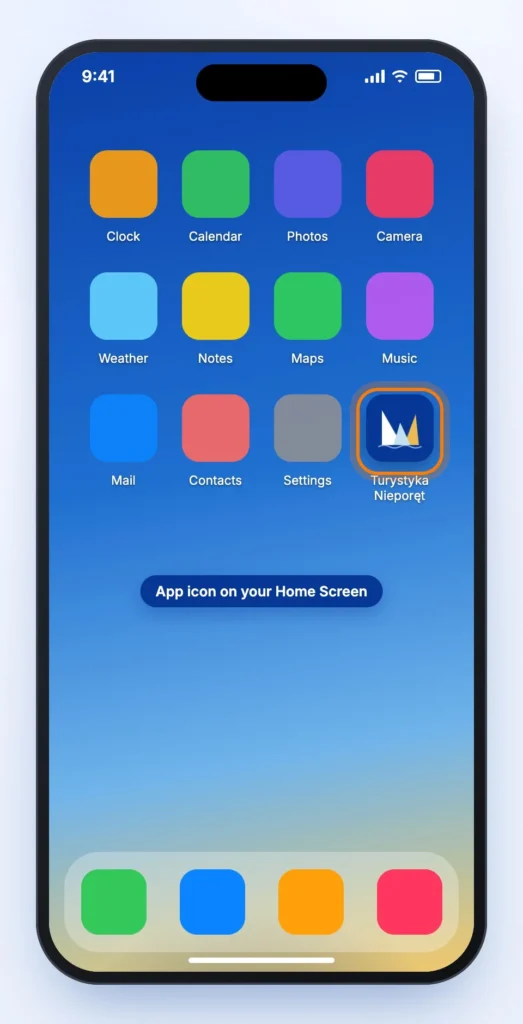
All done!
The Turystyka Nieporęt icon will appear on your Home Screen next to your other apps. You can move it anywhere or put it in a folder.
In older versions of iOS the Share icon (a square with an upward arrow) is visible directly in Safari’s bottom bar, and on iPad in the top right corner. Since iOS 16.4 the same option is also available in the share menu of Chrome and Edge.
How does the app work once installed?
The installed app is the same portal, just more convenient to use. It opens in its own window, without the address bar and browser buttons, so there is more room on the screen for attractions, routes, events and the interactive map.
In the background a so-called service worker – a small program – stores the portal’s layout and the pages you have already visited in your phone’s memory. Each time you open the app, it first fetches the latest content from the internet; when there is no connection, it shows the most recently saved version. If a page has not been opened before, you will see a clear message instead of a browser error.
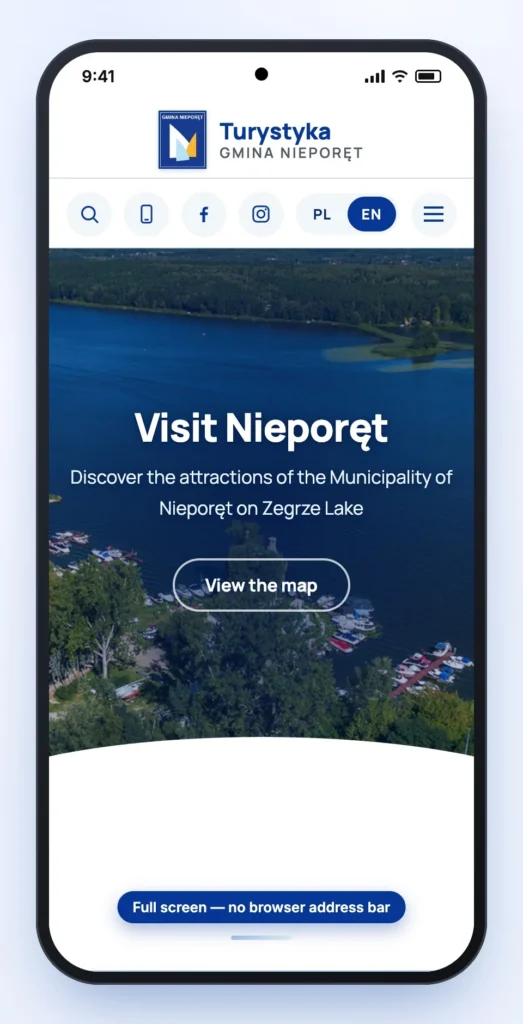
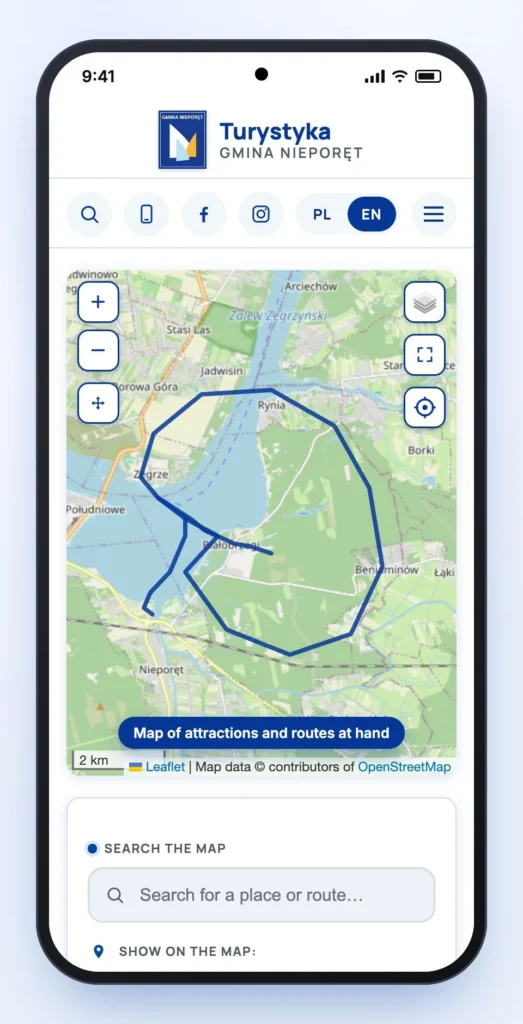
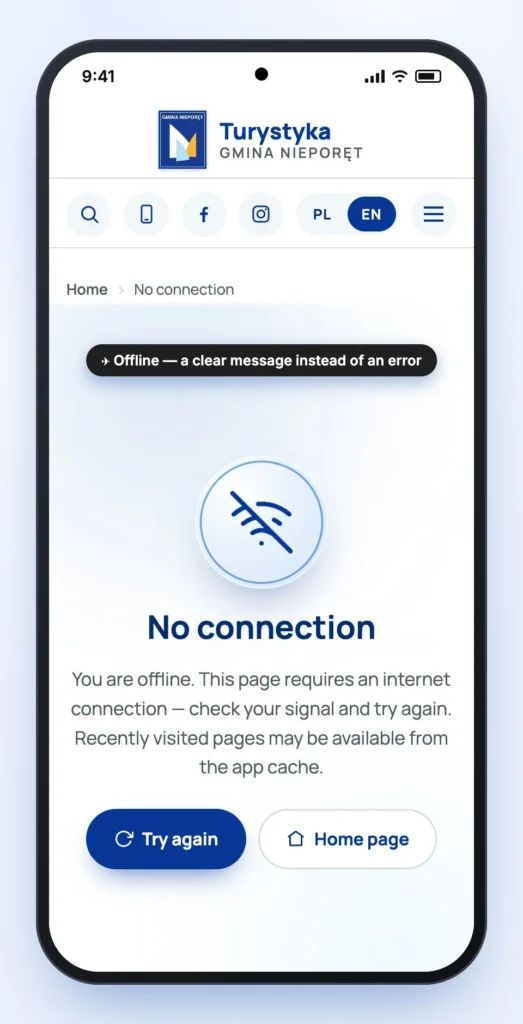
The app does not collect any additional data and requires no permissions. It will only ask for access to your location when you use the button on the map that shows where you are.
On a computer
You can also install the portal on a Windows, macOS or Linux computer. In Chrome or Edge, click the install icon on the right side of the address bar (a monitor with an arrow) or choose Install Visit Nieporęt from the browser menu. On a Mac in Safari, use File → Add to Dock.
Frequently asked questions
Is the app free?
Yes. Installing and using the app is completely free. You do not need an account or to log in.
I can’t see “Install app” or “Add to Home Screen”
Make sure the portal is open in a regular browser (Chrome on Android, Safari on iPhone) – not in private/incognito mode or inside another app, e.g. after tapping a link in Facebook or Messenger. In that case choose Open in browser and try again. If the app is already installed, the install option may not be shown.
Does the app work offline?
Partly. Pages you have already visited are available from your phone’s memory, even offline. New content and the map background require an internet connection.
How do I update the app?
You don’t have to do anything – the app updates itself when you open it with an internet connection. You always see the latest attractions, routes and events.
How do I remove the app?
Just like any other app: press and hold the icon and choose Uninstall (Android) or Remove Bookmark / Delete App (iPhone). On a computer, open the app and choose the uninstall option in its menu.
Is the app available in Polish?
Yes. Switch the language with the PL / EN switcher in the top bar – just like on the website.
The screenshots are for illustration only – menus and option names may differ slightly depending on your phone model, system version and browser.